9 min readUpdated 6 October 2026
Everfield has four plans, and only two features are actually restricted by which one you're on. This guide covers what each plan costs, how the 7-day free trial and discount codes work, and exactly what changes when you upgrade, downgrade or uninstall. Reading it takes about five minutes; changing your plan takes under a minute.
You'll find everything described here on the Pricing page: go to Apps → Everfield - Product Options and click Pricing in the left nav. The page is titled Billing plans, with the line "Upgrade, downgrade, or cancel whenever you want."
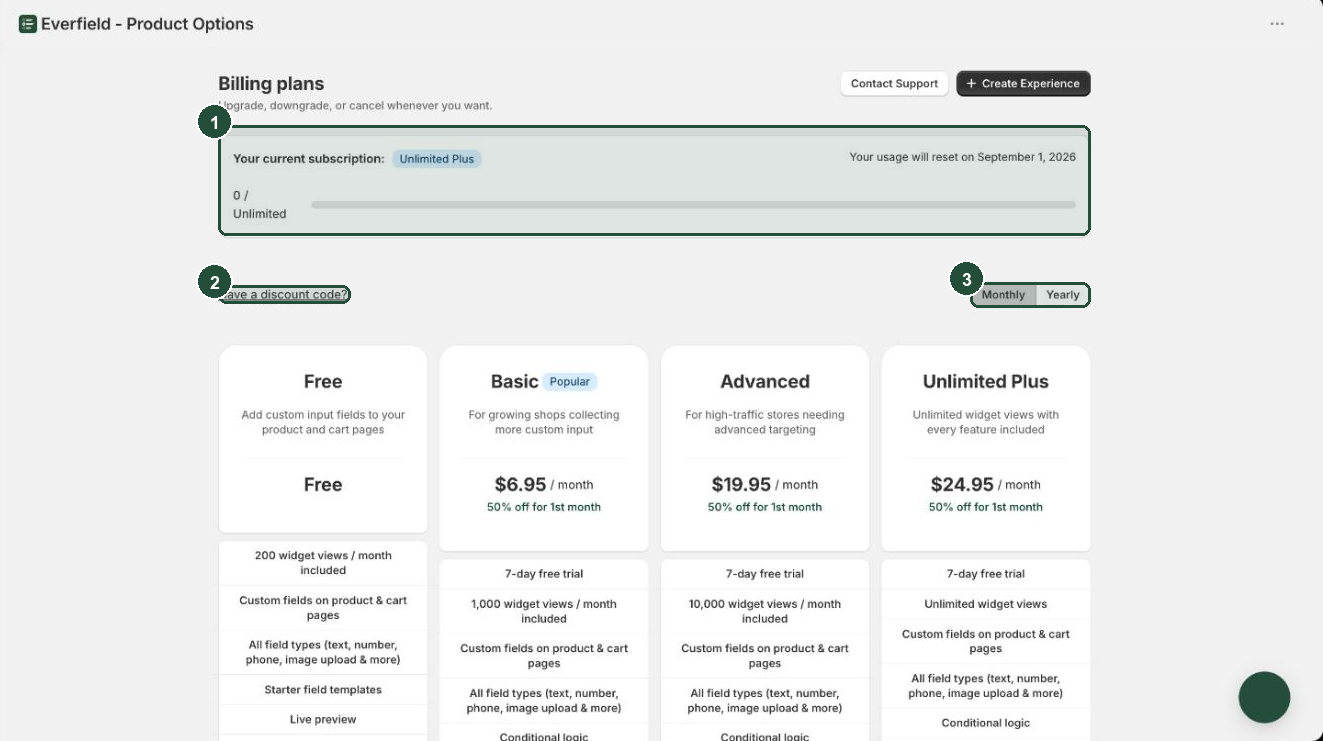
The four plans
Prices are in US dollars and are billed by Shopify on your normal Shopify invoice.
| Plan | Monthly | Yearly | Widget views included | Trial |
|---|---|---|---|---|
| Free | $0 | $0 | 200 / month | None |
| Basic (badged Popular) | $6.95 | $69.50 | 1,000 / month | 7 days |
| Advanced | $19.95 | $199.50 | 10,000 / month | 7 days |
| Unlimited Plus | $24.95 | $249.50 | Unlimited | 7 days |
Every plan, including Free, gives you custom fields on product and cart pages, all field types, starter templates and the live preview. Paid options and image uploads are not restricted by plan either.
One nuance on starter templates: in the dashboard's Create experience menu and on the Create experience page, a template that arrives with a paid feature already built in — Engraving ships a conditional-logic rule — is badged with the plan it needs, because the save would be refused. Every other template is available on every plan.
What is actually different between plans
Two features are gated. That is the whole list:
- Conditional logic — showing or hiding a field based on what the customer picked. Included on Basic and above.
- Targeting — limiting an experience by product, collection, country, device or product tag. Included on Advanced and above.
In the builder, the sections that carry these are Rules (conditional logic) and Product targeting, Country targeting and Device visibility (targeting). On a plan that doesn't include them, you can still see the section — it's shown greyed out under an information banner naming the plan you need, with an Upgrade to Advanced (or Upgrade to Basic) button.
If you try to save an experience that adds a feature your plan doesn't include, the save is blocked with a message in the form "Targeting is not included in your current plan. Upgrade to Advanced to use it."
Nothing else on the plan cards is enforced in the app.
Free trial
Basic, Advanced and Unlimited Plus each include a 7-day free trial. Free has no trial, because a trial on a $0 plan would mean nothing and would use up the one trial your store gets.
To start it:
- Open Pricing.
- Choose Monthly or Yearly.
- Click Select Plan (if you're on Free) or Upgrade on the plan you want.
- Approve the charge on Shopify's confirmation screen.
Three things worth knowing:
- The trial is once per store. Once you've used it, later subscriptions start billing straight away.
- It only counts once you approve. The trial starts when the subscription becomes active on Shopify's side. If you back out of the approval screen, you haven't used it.
- Uninstalling doesn't reset it. Reinstalling puts you back on Free, and inside the roughly 48-hour window before your data is deleted a trial you've already taken doesn't come back. (After that window your configuration — trial record included — is gone for good.)
At the end of the seven days Shopify starts billing automatically — at the plan price, less the built-in 50% off for 1st month offer or any discount code you applied. Downgrade before then if you don't want to be billed at all.
Monthly and yearly
The Monthly / Yearly toggle sits above the plan cards, badged 2 months free. Yearly charges ten months instead of twelve: Basic is $69.50 rather than $83.40, Advanced $199.50 rather than $239.40, and Unlimited Plus $249.50 rather than $299.40. Each card shows what you save, for example "Save $13.90 a year" on Basic.
One thing does change: the built-in 50% off for 1st month offer applies to monthly billing only. If you subscribe yearly you don't get it, so a brand new subscription is cheaper monthly for the first month and cheaper yearly from then on.
(Until 5 September 2026 the yearly price was exactly twelve times the monthly price and saved you nothing. If you subscribed yearly before that date you keep the price you agreed to, and nothing about your plan or its features changes. Cancel and resubscribe yearly to move to the cheaper price.)
Switching the toggle while a discount code is applied re-checks that code against the new billing interval. A code that's restricted to one interval drops off when you switch.
Discount codes
If you have a code from Everfield support or a promotion:
- On Pricing, click Have a discount code?.
- Type the code into the field marked Enter code.
- Click Apply.
A valid code shows a badge reading "10% off applied" (with your code's percentage) and a Remove button next to it. If the code isn't valid you'll see Invalid discount code, This discount code is no longer active, or a message telling you the code only works on monthly or only on yearly plans. Codes are checked again when you subscribe, so the price you approve is the price you'll be charged.
Read this before you apply one. A discount code replaces the built-in 50% off for 1st month offer — the two never stack. On monthly billing, every code weaker than 50% therefore costs you more in your first month than applying no code at all. (On yearly there's no first-month offer to lose, so a code there is a straight saving.) The difference is what happens after that:
- The built-in first-month offer takes 50% off one billing period, and only on monthly billing.
- A discount code applies for as long as the subscription runs.
So a small permanent code beats the first-month offer over time, but costs more in month one. If you're only trying the app for a month, you're better off applying nothing.
Upgrading and downgrading
To move to a higher plan, click Upgrade on the plan card and approve the new charge on Shopify. Your existing subscription isn't cancelled first — Shopify only replaces it once you approve. If you change your mind on the approval screen, nothing happens and you stay on your current plan.
To move to a lower paid plan, click Downgrade and approve in the same way.
To move to Free, click Downgrade to Free. A confirmation appears, titled Downgrade to the Free plan?, with Downgrade to Free and Stay on Advanced (naming whichever plan you're on). This one takes effect immediately — there's no Shopify approval screen. Everfield cancels the subscription with proration, so you're credited for the unused part of the period you already paid for.
What survives a downgrade to Free:
- Your experiences keep working. Nothing is deleted and nothing is removed from your storefront.
- An experience that already uses conditional logic or targeting keeps working, and you can still edit it — including to remove the rule.
- What you can't do is add conditional logic or targeting to an experience that doesn't already use it.
What happens if you uninstall
Uninstalling ends the billing relationship through Shopify: your subscription is cancelled and your plan is cleared. Your experiences, settings and analytics are not deleted — only Shopify's data-deletion request removes them.
If you reinstall, your store comes back on Free. Your view usage for the month does not start over: the number on the Pricing page is worked out from the impressions recorded since the 1st, and uninstalling doesn't delete those, so a reinstall part-way through a month picks up where you left off. A 7-day trial you've already used does not come back either. If you were charging for paid options, Shopify archives the hidden bundle product on uninstall; Everfield restores it the next time your published experiences sync.
Widget view limits
A widget view is one impression: it's counted once each time one of your experiences renders for a customer. Cart widgets are de-duplicated per widget, so a slide-cart that re-renders several times on one page doesn't inflate the number.
To see your usage, open Pricing and look at the card at the top: Your current subscription: shows your plan badge, your views used against your plan's allowance, and a line reading Your usage will reset on with a date. The count covers the current calendar month and starts again on the 1st.
Be clear on what the limit is: it is a fair-use guide, not a hard cap. Nothing is switched off when you go past it. Your options carry on rendering for customers, and there is no overage charge — Everfield never bills you for extra views. What you get instead is a banner in the admin: You're close to your monthly view limit at around 80%, and You've used all your widget views this month once you're over, each with a link to the plans. If you're consistently over, that's the signal to move up a plan.
Troubleshooting
The Pricing page says you're on Free, but you thought you were on a paid plan. Everfield checks with Shopify on every visit and follows what Shopify reports. If Shopify has no active subscription for your store — usually because the charge was declined, cancelled or expired — your plan is reset to Free. Pick the plan again and approve the charge. (The reset is deliberately skipped when the Shopify check itself fails, and when your subscription is pending approval or frozen, so a blip can't strip a plan you're paying for.)
You were charged more in your first month than you expected. You most likely applied a discount code, which replaces the built-in 50% off for 1st month offer instead of stacking with it. Remove the code before subscribing if the code is worth less than 50%.
Your code is rejected with a message about monthly or yearly plans. Some codes only work on one billing interval. Switch the Monthly / Yearly toggle to the interval the code is for, then apply it again.
You see "Couldn't reach Shopify to cancel your subscription. Please try again." The downgrade was abandoned rather than half-completed — you're still on your paid plan and still billed as before. Wait a moment and click Downgrade to Free again.
A payment failed. Everfield does not downgrade you. Your plan stays as it is and the subscription is marked frozen until Shopify can take the payment. Fix the payment method in your Shopify billing settings.
A section in the builder is greyed out. You're on a plan that doesn't include that feature. The banner above the section names the plan you need and links straight to it. See Conditional logic and Targeting for what each one does.