9 min readUpdated 6 October 2026
You can charge for an option in Everfield — engraving, gift wrap, a rush date, an extra photo — and Shopify collects the money at checkout along with the product. Setting up a paid option takes a couple of minutes: type a price into a field or a choice, save, publish, done. This guide covers where prices go, how the surcharge reaches the cart, and what you see on the order.
How paid options are charged
Everfield charges for paid options through a hidden product in your catalogue. When you publish an experience that contains prices, Everfield creates one add-on product for your store and gives it a variant for every distinct combination of option label and price you have priced.
That product is created unlisted, so it never appears in your storefront search, sitemap or product recommendations. It does appear in your Shopify Products list. Leave it alone: if you delete or unpublish it, Everfield recreates and republishes it on the next publish, but until that happens any add-on lines already sitting in a customer's cart point at variants that no longer exist.
When a customer picks a paid option and adds to cart, Everfield adds the matching add-on variant to the cart as its own line, linked to the product line. Add-on variants are untracked and non-shippable, so a surcharge never blocks checkout on inventory or shipping rules.
Two things to know before you start:
- Paid options work on product-page experiences only. A Cart Fields experience has no price boxes at all — the cart widget cannot attach add-on lines, so pricing is removed from its field builder entirely.
- Prices only take effect once the experience is published. The add-on product and its variants are created when a published experience syncs — when you publish it, and again whenever you save a change to one that is already published. A price sitting in a draft charges nothing.
Put a price on a whole field
Use this when the field itself is the charge — a gift-wrap toggle, an engraving text box, a rush-delivery date, a photo upload.
- Open your product-page experience and go to the Fields tab.
- Expand the field you want to charge for.
- Type the amount into Add-on price. Numbers only, no currency symbol. Blank, zero and negative values are ignored.
- Click Save. On a draft experience, click Publish after the save — the button only offers Publish once there is nothing left to save. On an experience that is already published, the save is enough.
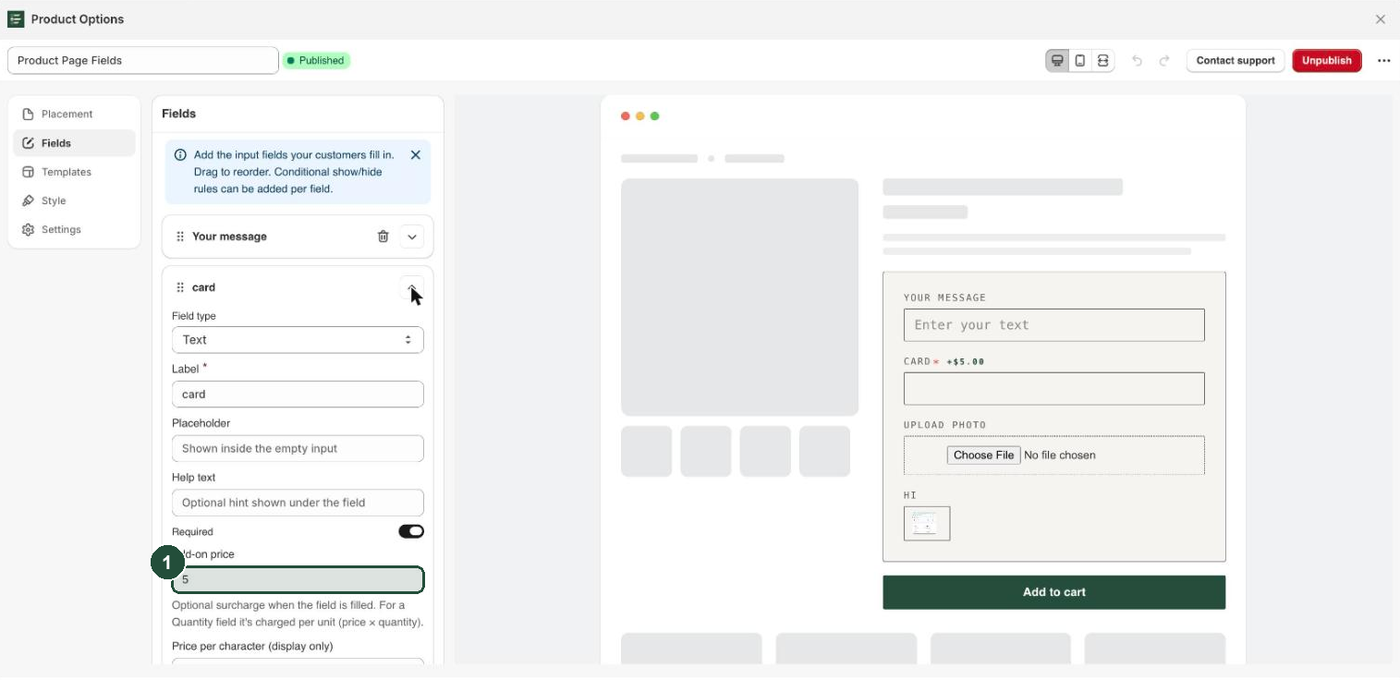
Add-on price is offered on nine field types: Text, Text area, Number, Quantity, Phone, Email, Date, File / image upload, and Toggle / switch. The customer is charged once, when the field has a value.
Quantity is the exception — it charges per unit (price × quantity). A Quantity field priced at 4.00 with 3 entered charges 12.00.
Price per character, offered on Text and Text area, charges for every character the customer types. Spaces between words count; spaces before and after the text do not. An engraving field priced at 0.50 per character with Anna B typed charges 3.00. The widget shows the running total as they type, and the cart gets an add-on line named after the field, such as "Engraving — per character", with the character count as its quantity. Amounts are rounded to whole cents, so anything under half a cent charges nothing.
You can set Add-on price and Price per character on the same field — a flat setup fee plus a rate per letter — and both are charged.
Put a price on individual choices
Choice fields — Dropdown, Radio buttons, Swatch and Multiple choice — price each choice separately instead of charging one flat fee for the field.
- Open the field on the Fields tab.
- Under Choices, expand a choice row, or click Add choice to create one.
- Type the amount into that row's Add-on price. Its help text reads "Optional surcharge added when this choice is selected."
- Repeat for each paid choice, and leave the box empty on free ones.
- Click Save, then Publish if the experience is still a draft.
The surcharge is shown to the customer next to the choice — a priced dropdown option reads "Gift box (+$5.00)". On a Multiple choice field, every ticked paid box adds up. On Dropdown, Radio buttons and Swatch, only the selected choice counts.
Product picker takes no price, at field level or per option.
Choose how paid options appear in the cart
Open Settings in the Everfield navigation. The Paid options card applies to your whole store, not to one experience.
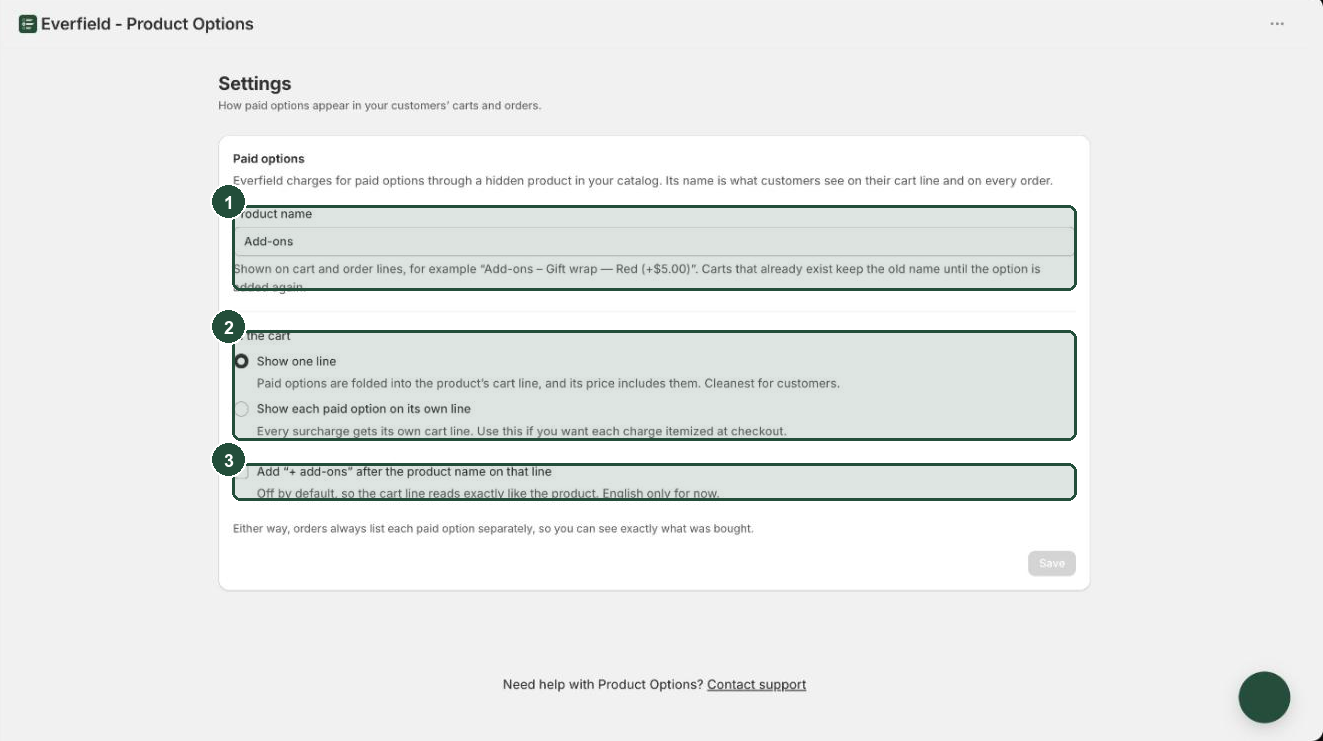
- Product name — the name of the hidden add-on product, default Add-ons. This is what customers see on an add-on cart line and on every order, for example "Add-ons – Gift wrap — Red (+$5.00)". It is capped at 255 characters, and a blank value falls back to Add-ons. Carts that already exist keep the old name until the option is added again.
- In the cart — choose Show one line (the default: paid options are folded into the product's cart line, and its price includes them) or Show each paid option on its own line (every surcharge gets its own cart line, itemized at checkout).
- Add "+ add-ons" after the product name on that line — a checkbox that only appears with Show one line. It is off by default, and it is English only for now.
- Bundle product name — also only with Show one line. The name of the second hidden product that groups the merged line, default Bundle. It is capped at 255 characters, and a blank value falls back to Bundle. Some themes show this name on the cart line — see the limits below.
- Click Save.
Both display modes charge exactly the same amount. The add-on lines exist either way — Show one line only folds them together in the cart view.
What the customer and you see on the order
While the customer fills the form, the widget shows a running surcharge total in your store's active currency. In the cart they see whichever layout you picked above, and at checkout they pay the product plus the surcharges.
On the order, it does not matter which cart display you chose. As the Settings page puts it: "Either way, orders always list each paid option separately, so you can see exactly what was bought."
Each add-on line carries a visible Option property naming what was bought. For a priced choice it joins the field label and the choice label, as in "Gift wrap — Red". For a priced field it is the field's own label. The customer's actual answers stay on the product line as line item properties, keyed by your field labels.
Limits worth knowing
- Product page only. You cannot charge from a cart-placement experience.
- A price only charges once provisioning succeeds. If the add-on product could not be created or published, the surcharge still shows on the storefront but nothing is charged. See Troubleshooting below.
- 2,000 add-on variants per store. Each distinct label-and-price pair costs one variant. Publishing does not fail above the limit — it stops short of provisioning, so the surcharges display and nothing is charged, and the dashboard raises the "Priced options are displaying but not charging" banner. Cut the number of distinct priced options to clear it.
- A price per character you set while the box was labelled "display only" starts charging at your next save. It used to be an estimate that was never billed. It becomes a real charge the next time anything in your store re-syncs: saving or publishing any experience, or saving Settings. If you had typed one in as an estimate only, clear the box before then.
- Paid options are charged once per add to cart, not once per item. A customer who sets the product quantity to 3 on the product page pays the option's price once, per-character charge included. If they raise the quantity in the cart instead, the paid options are multiplied along with the product.
- The per-character charge is set when the item is added. If a cart experience lets the customer edit that same text afterwards, the charge does not change.
- A character is a letter, digit, symbol, space between words, or line break. An emoji counts as one, though a few compound emoji count as more.
- A second hidden product appears when you use Show one line. Alongside your add-on product (default Add-ons), the merged cart line needs a bundle product (default Bundle) to group the lines, so it is created the first time you publish priced options in that mode. Both are unlisted, both can be renamed in Settings, and neither should be deleted. What customers see on the merged line depends on your theme. Some themes, such as Dawn, show the line's own title. Horizon, Shopify's current default theme, shows the bundle product's name (Bundle unless you renamed it) as the line heading with the product's name underneath, and does not list the customer's answers in the cart — they do appear at checkout under the item, and on the order. The bundle product's name also shows in your Products list and in apps that read the underlying product, such as order printers.
- The add-on name follows your labels. Rename a field or a choice and future cart and order lines say the new name. Past orders keep what they were bought under.
- The variant name always writes the amount with a dollar sign, for example "(+$5.00)", even if your store sells in another currency. The amount charged is in your store's currency.
Troubleshooting
The dashboard says "Priced options are displaying but not charging". Publish-time provisioning failed, and the banner text names the cause. Usually the app has not been granted the permissions it needs to create and publish the add-on product: click Update permissions, accept the permission screen, then click Retry. The other case is that Everfield could not confirm the add-on product is live on your Online Store — click Retry first there, and fall back to Update permissions if that does not clear it. Retry is the banner's main button, and no reinstall is needed. Until it succeeds, customers see the surcharge but are not charged for it.
You published and got a toast saying options won't charge yet. Same cause. The message is "Priced options are showing but won't charge yet — the add-on product couldn't be published. See the dashboard banner." Fix it from the dashboard banner as above.
There is no Add-on price box on your field. Either you are editing a Cart Fields experience, where pricing is removed altogether, or the field type does not take a flat price. Choice fields price per choice under Choices, and Product picker takes no price at all.
You chose Show one line but the cart still shows separate lines. Merged display relies on a Shopify cart transform, and it is skipped when your store cannot run it or when the cart group contains a subscription line. The surcharges are still charged correctly — only the cart view differs.
Horizon shows "Bundle" on the cart line. With Show one line, Horizon heads the merged line with the bundle product's name. In Settings, change Bundle product name to something customers will read naturally — "Your order", say, or a phrase in your store's own voice — and click Save. Or choose Show each paid option on its own line, which leaves the product's line untouched.
Settings saved but nothing changed on the storefront. If you saw "Settings saved, but your storefront could not be updated right now. Publish an experience to apply them.", your settings are stored but the storefront sync did not run. Open any published experience and publish it again to apply them.
A Quantity field with a price didn't charge anything. A Quantity input starts at 0, and 0 charges nothing. The customer has to raise it to 1 or more before an add-on line is added.