8 min readUpdated 6 October 2026
Conditional logic lets a field stay hidden until it matters — an engraving text box that only appears after the customer picks Yes, a gift message that only shows on gift wrap. You build the rules per field in the customizer, and it takes a couple of minutes per field. Conditional logic needs a paid plan (Basic and up).
Where the rules live
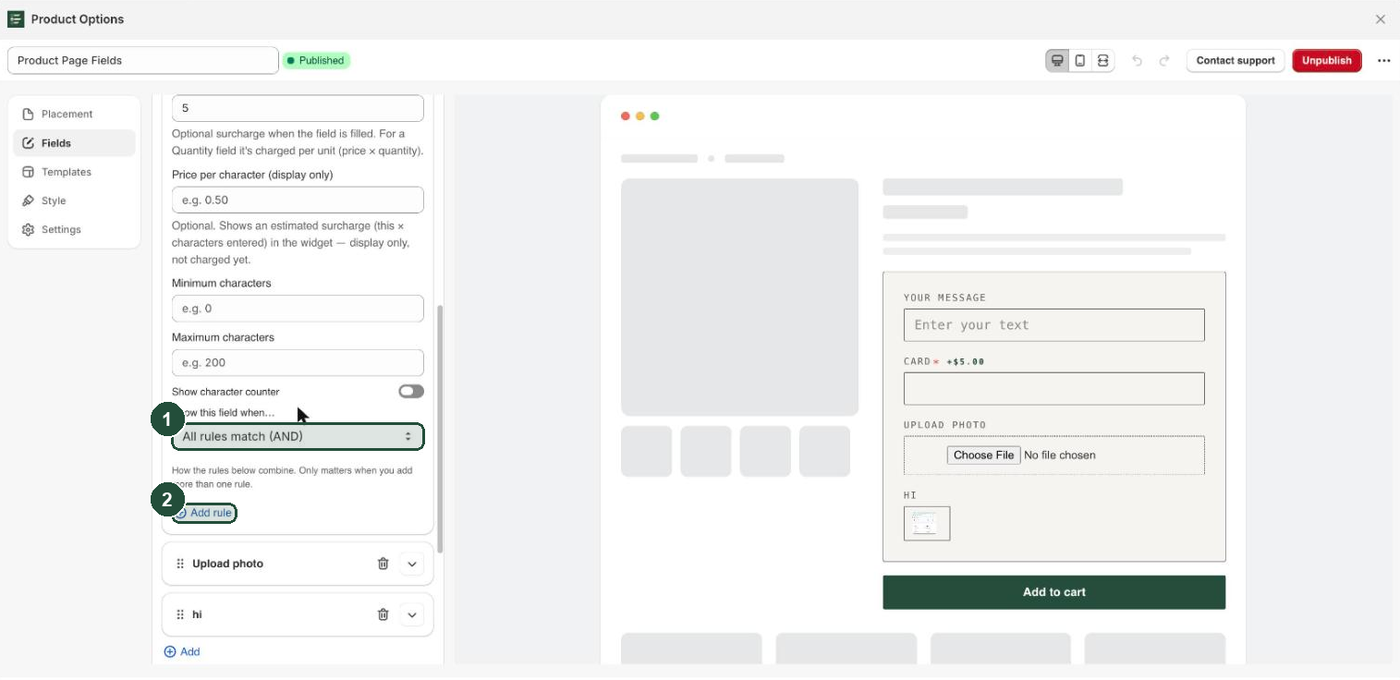
Rules belong to a single field, not to the experience as a whole. Open your experience in the customizer, go to the Fields tab, and expand the field you want to control. The rule controls sit at the bottom of that field's settings, below the field's own options:
- Show this field when… — a dropdown with two choices, All rules match (AND) and Any rule matches (OR). The help text under it reads "How the rules below combine. Only matters when you add more than one rule."
- An Add rule button. Each rule you add appears as a card above it.
A field with no rules always shows. That is the default for every new field.
Display-only blocks take rules too — Heading, Paragraph, Divider, Spacer, Custom HTML and Size chart all have the same Show this field when… section, so you can hide a whole chunk of explanation until it is needed.
Build your first rule
This example is the classic one: an Engraving text field that only appears when the customer answers Yes to a field labelled Add engraving?.
- In the Fields tab, expand the field you want to hide — Engraving text.
- Scroll to Show this field when… and click Add rule.
- Leave Based on set to Another field.
- In When field (label), type the exact label of the controlling field:
Add engraving?. The placeholder tells you the same thing — "Exact label of the controlling field". - Set Condition to includes.
- Type
Yesin Value. - Try it in the live preview on the right. Answer the controlling field and watch Engraving text appear and disappear. The preview runs the same rule engine as the storefront, so field-based rules behave there just as they will for a customer — the one exception is a rule keyed to a Product picker field, which the preview does not wire up.
- Save the experience. If the badge beside the name still reads Draft, click Publish — a draft never renders on the storefront. If it already reads Published, saving is enough: rules are compiled into the storefront widget every time you save a published experience, so you do not have to publish again.
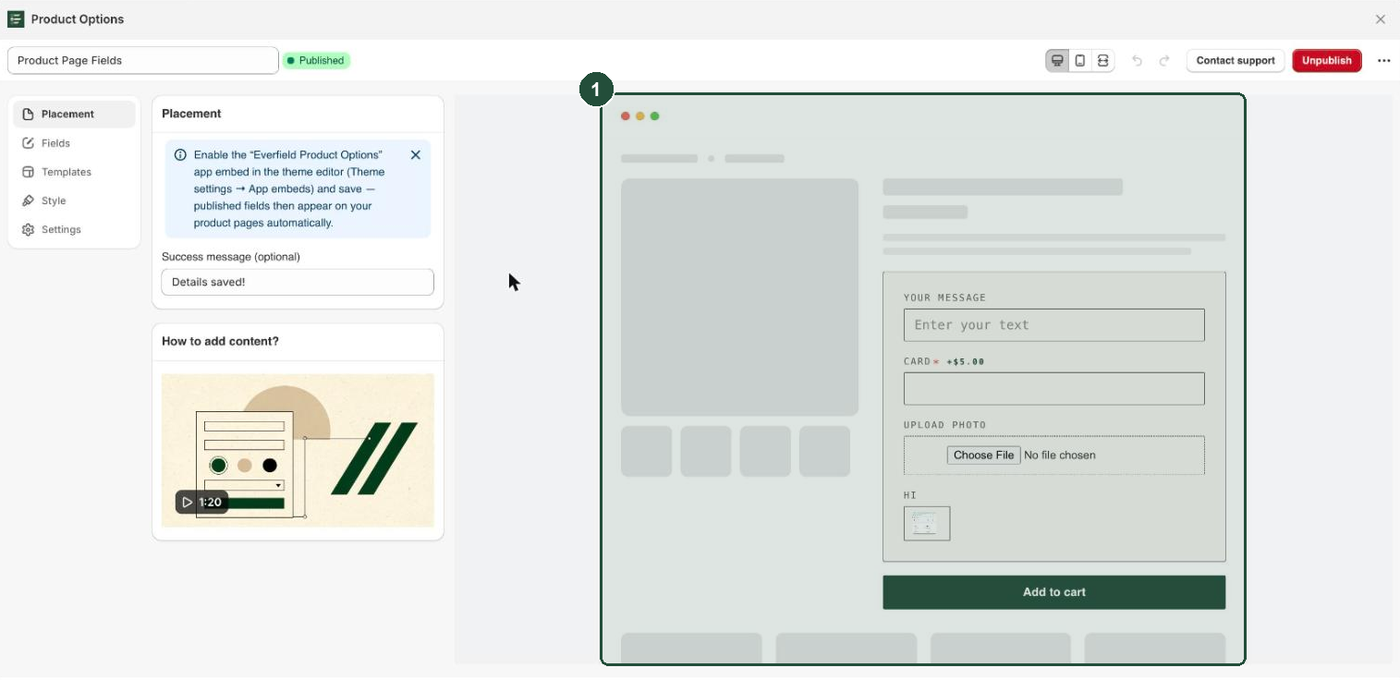
The rule stores the label you type, so renaming the controlling field breaks every rule that points at it — update those rules and save again whenever you rename. If two fields share a label, the first one wins.
You can add up to 5 rules on one field; past that, Add rule is disabled. The rule cards are titled Item 1, Item 2 and so on — the list does not summarise what each rule does, so open a card to read it.
The five conditions
The Condition dropdown offers exactly five operators.
| Condition | What it does |
|---|---|
| equals | The answer matches Value exactly. Case-sensitive. |
| does not equal | The answer is anything other than Value. Case-sensitive. |
| includes | Value appears anywhere inside the answer. Not case-sensitive. |
| is not empty | The customer has answered the field at all. |
| is empty | The customer has not answered the field yet. |
The Value input only appears for equals, does not equal and includes. It disappears for is empty and is not empty, because those two do not compare against anything.
includes is the forgiving one — it ignores case and matches part of an answer, so a rule for yes also matches Yes and Yes, please. It is the safer choice for a multiple choice field, where several answers can be ticked at once. Use equals when you need one specific answer and nothing else, and copy the choice text exactly, capitals included.
Rules are re-checked on every keystroke and every selection change inside the widget, so fields appear and disappear as the customer types.
Combining rules with AND or OR
Show this field when… decides how multiple rules combine. It defaults to All rules match (AND) and has no effect at all while a field has one rule or none.
- All rules match (AND) — the field shows only when every rule passes. Use it to narrow: show Gift message when Gift wrap equals
Yesand Delivery type equalsSend direct. - Any rule matches (OR) — the field shows when at least one rule passes. Use it to widen: show Upgrade extras when Frame equals
Oakor Frame equalsWalnut.
There is no way to mix AND and OR on the same field. If you need that, split the logic across two fields, or restate it as a single set of AND rules.
Rules based on the product variant
Set Based on to Product variant to key a field to what the customer has selected on the product page instead of to another field.
- Add a rule and set Based on to Product variant.
- In Variant option (optional), type the name of the variant option you want to compare, such as
Color. The help text reads "Name of the variant option to compare. Leave blank to match the full variant title." - Choose a Condition and a Value as usual.
Leaving Variant option (optional) blank compares against the whole variant title, for example Blue / Large. In that case includes is usually the right condition, since the title joins every option together.
Three limits to plan around:
- Variant rules only run on the product page. The cart widget never knows which variant it is looking at, so a variant rule there compares against an empty value and never matches — with one exception, is empty, which always passes and leaves the field showing.
- The customizer preview has no variant data, so a variant rule looks permanently unmatched in the preview (again, apart from is empty). Test it on a real product page instead.
- Reading the selected variant depends on how your theme publishes it. It works on standard themes, but it is best-effort — after publishing, switch variants a few times on your live product page and check the field behaves.
What happens to a hidden field answer
On the product page, a hidden field is skipped entirely when the values are collected for the cart. That means:
- A hidden field's answer never reaches the cart. It is not written as a line item property, so it will not appear on the order.
- A hidden required field does not block Add to cart. Validation skips hidden fields, so a required question that is not currently relevant will not stop the customer.
- A hidden field adds no surcharge. Any add-on price on the field is left out of the total while the field is hidden.
- The typed value is kept in the browser. Hiding a field does not clear what the customer typed, so if the rule matches again the previous answer is still there.
One exception, in the cart. If a customer already answered a field on the product page and that field is hidden by a rule in the cart editor, the value stays on the cart line as it was captured. Hiding a field in the cart stops the customer editing it; it does not strip a value that is already saved on the line.
Troubleshooting
The field never appears on the storefront. Almost always a label mismatch. The rule points at the label you typed, so a typo or a renamed field makes the controlling answer read as blank — and an equals rule against a blank answer can never pass. Capitals and spaces at the start or end of the label are ignored when the rule is matched, but every other character must agree. Copy the controlling field's Label exactly, then save again (or click Publish if the experience is still a draft).
The field always shows, even when the rule should hide it. Same cause, opposite symptom: an is empty rule pointing at a label that does not exist always passes. Check the spelling in When field (label), and confirm you saved afterwards — a published experience compiles your rules to the storefront on Save, and a draft only reaches the storefront once you click Publish.
A rule broke after I renamed a field. Renaming does not update the rules that reference the old label. Retype the new label in When field (label) on every field that depended on it, then save.
My variant rule works on the product page but not in the cart. That is expected. Variant rules only have variant data on the product page placement; in the cart they compare against an empty value. In the cart, base the rule on another field instead.
The variant rule looks broken in the preview. The preview has no variant selected, so variant rules never match there. Publish and check a live product page.
Add rule is disabled. You have hit the limit of 5 rules on that field. Delete one, or move some of the logic to a different field.
The rules builder is replaced by a Basic plan badge. Conditional logic is a paid feature. Where the rule builder would be, you see Conditional logic, a Basic plan badge and an Upgrade to Basic link — there is no Add rule button to click until you upgrade. Note that the Show this field when… dropdown is not gated, so you may see the AND/OR selector sitting above that upgrade prompt — it does nothing on its own.
I started from the Engraving template on the Free plan and the save is refused. The Engraving starter template ships with a conditional rule already built, and a brand-new widget has nothing to grandfather, so saving is refused with "Conditional logic is not included in your current plan. Upgrade to Basic to use it." Either upgrade, or open the Engraving text field and delete the rule — an experience that already uses rules keeps its builder editable so you can remove them. Rules you built on a paid plan keep working and stay editable if you later downgrade — only newly added paid usage is refused.