8 min readUpdated 2 October 2026
When a customer fills in your product options and checks out, their answers are saved onto the Shopify order itself. This guide shows you where to find what customers entered on an order, how to read the Submissions page in Everfield, and what happens to that data if you ever uninstall. It takes about five minutes to read.
Where do answers appear on a Shopify order?
Everfield writes answers straight into the Shopify cart, so by the time an order exists the values are already part of it. Where they show up depends on which placement collected them.
Answers from a product-page experience are saved as line item properties. Open Orders in your Shopify admin, click the order, and you will see them under the item they belong to. If someone buys two personalised mugs with different engraving text, each line carries its own answers.
Answers from a cart experience are saved as order attributes. They appear once per order under Additional details, not against any single item — which suits things like a delivery date or a gift-wrap instruction that applies to the whole order.
In both cases the name shown is your field Label, copied exactly. A field labelled Engraving text appears on the order as Engraving text, so it is worth settling on your labels before you go live.
A few things affect what actually lands on the order:
- Blank fields are skipped. An empty optional field produces nothing at all, rather than an empty row. The exception is a Quantity field, which always holds a number: left untouched it saves its minimum, usually
0. - Fields hidden by conditional logic are never saved. If the customer never saw it, it is not on the order. See Show a field only when it is relevant.
- A Toggle / switch field saves its Value when on only when the customer switches it on. Off saves nothing.
- File uploads save a link, not the file. Several files land in one property as a comma-separated list. See Let customers upload a photo with their order.
- Paid options are itemised separately on the order, whatever the cart showed the customer. See Charge for an option.
Note: You may spot keys beginning with
_npi_on an order or in an export. Everfield writes those to link a priced option back to its product line. They are internal — ignore them. The one add-on key meant for you is Option, which names the paid option that line was bought for.
What the Submissions page shows
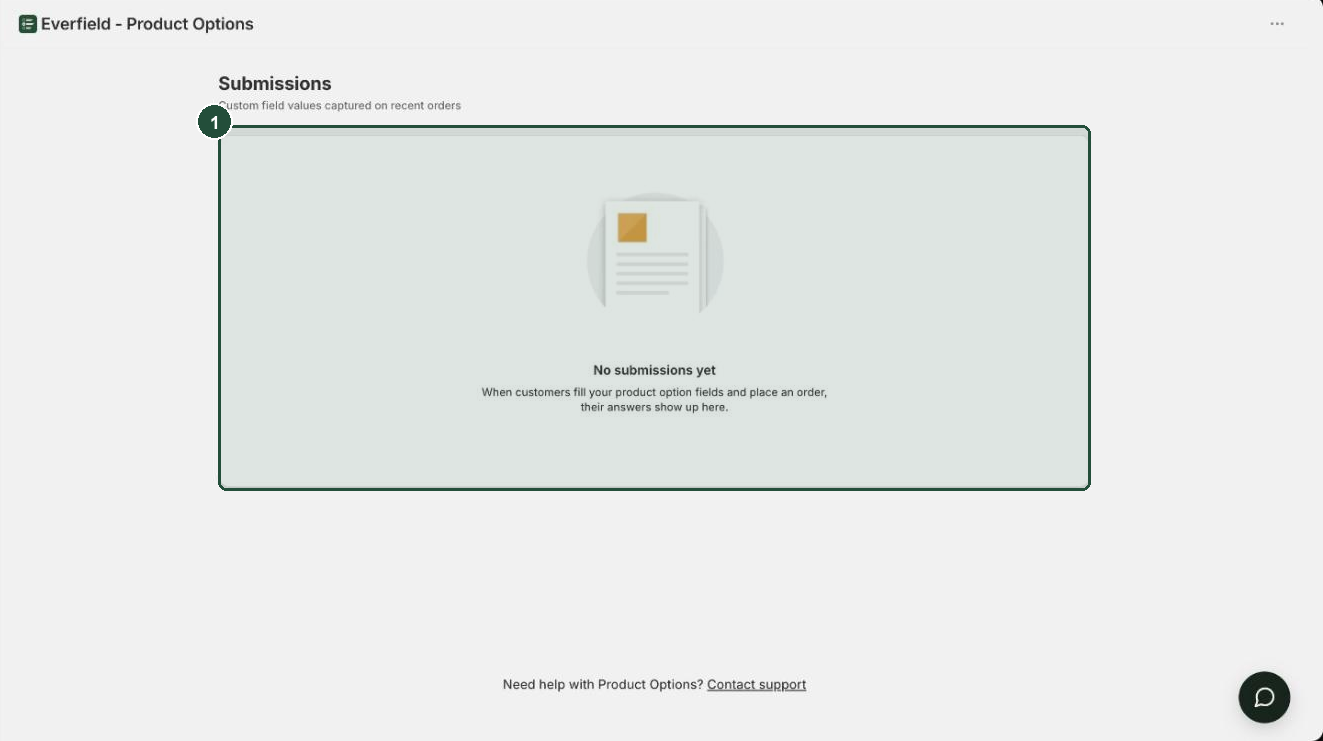
Submissions gives you a single list of recent answers without clicking through orders one at a time. In the app, open Submissions in the left nav. The subtitle reads Custom field values captured on recent orders.
The table has six columns:
- Order — the order number, as plain text. It is not a link, so to open the order itself go to Orders in your Shopify admin and search for that number.
- Date — the date the order was placed. Date only, no time.
- Product — the item the answer belongs to. An em dash (—) means an order-level answer that belongs to no single item.
- Field — your field Label. If it matches a field in any of your experiences — draft, published or archived — it gets a green Experience field badge.
- Value — what the customer entered. Long values are shortened to fit; hover over one to see it in full.
- Source — Line item for a product-page answer, Order attribute for a cart answer.
The page is read-only and reads live from your Shopify orders each time you open it — Everfield keeps no copy. Nothing here writes back to the order, and Shopify's own order page has no field for editing a line item property or an order attribute either, so treat what lands on the order as final and note any correction in the order notes or with whoever fulfils it.
The Experience field badge is matched on the label text. If you rename a field, orders placed under the old label lose the badge, though the value itself is untouched.
Exporting answers and passing them to other apps
There is no export button in Everfield. For most of what you need there does not have to be: the answers are stored as ordinary Shopify line item properties and order attributes, so everything that already reads your orders reads them too, with no extra setup.
- Order exports. In your Shopify admin go to Orders, select the orders you want, and use Shopify's own export. Cart answers come through in the CSV's Note Attributes column. Line item properties are not one of Shopify's export columns, though, so product-page answers do not appear in that CSV — read those on the order, on a packing slip, or through an order-export app that supports line item properties.
- Packing slips.
line_item.propertiesis available to the packing slip template, but the stock template does not print it — you add a loop over it yourself under Settings → Shipping and delivery → Packing slip template. It is a few lines of Liquid and worth doing if your picker needs the engraving text in their hand. See Shopify's packing slip variable reference. A snippet you can paste is below. - Fulfilment, print-on-demand and order-printer apps. These read the standard order payload, so they pick the answers up the same way they pick up variants and quantities. Point them at the property name, which is your field Label.
For the packing slip, paste this inside the template's line item loop, under the item title. It prints each answer and skips Everfield's internal _npi_ keys and anything left blank:
{% for property in line_item.properties %}
  {% assign first_char = property.first | slice: 0 %}
  {% unless first_char == "_" or property.last == blank %}
    <p>{{ property.first }}: {{ property.last }}</p>
  {% endunless %}
{% endfor %}
For anything older than the most recent orders, open the order directly in your Shopify admin — the Submissions page has no search, filter or export of its own.
Why is the Submissions page empty?
There are three ordinary reasons, and it is worth ruling them out in this order.
No orders with filled fields yet. If you see the heading No submissions yet with the text "When customers fill your product option fields and place an order, their answers show up here.", the page worked and found nothing. Place a real test order with your fields filled in and check again.
The answer is older than the last 25 orders. Submissions reads only your 25 most recent orders, and up to 25 line items within each of them. There is no search, no date filter, no pagination and no export. On a busy store, answers drop off this view quickly. They are still on the orders — open the order directly.
Everfield cannot read your orders. A warning banner reads "We couldn't read your order data yet. This app needs the order permission to show submissions here — try reinstalling the app, or contact support if this continues." Order data is protected, so the usual cause is that the permission has not been granted to the app for your store. Reinstalling from your Apps list and accepting the permission screen resolves most cases. If the banner stays, use Contact support at the bottom of any page in the app.
Everfield treats any failure to read your orders as a permission problem, so a temporary network or rate-limit hiccup shows the same banner. If nothing about your permissions has changed, reload the page first.
What happens to your data if you uninstall
Everfield never stores what your customers type. The values go from the customer's browser into your Shopify cart, and from there onto your order. There is no copy of them in the app.
That has a useful consequence: uninstalling Everfield does not remove answers from past orders. Every line item property and order attribute stays exactly where it is, and exports, packing slips and fulfilment apps keep reading them. What you lose is the Submissions page, which is part of the app.
Uploaded files behave the same way. They are saved into your own Shopify Files library the moment the customer picks them, so they live in Content → Files under your store, not Everfield's. They survive uninstalling, and Everfield never deletes them — if you want old customer artwork gone, delete it yourself there.
What Everfield does hold is your own configuration — your experiences, their fields and styling, and your view counts. On uninstall your access tokens are removed straight away and that configuration is kept for roughly 48 hours, then deleted for good when Shopify sends the app its shop deletion request. Reinstall inside that window and your experiences are still there, though your plan resets to Free, your view usage for the month picks up where it left off (see Plans and billing), and you need to turn the app embed on again — see Turn on the Everfield app embed. After it, there is nothing to recover.
Troubleshooting
A field the customer definitely filled in isn't on the order. Check that the field was actually visible to them. Fields hidden by a conditional rule are never saved, and a field left blank is skipped rather than saved as empty. Also check you are looking in the right place: a product-page answer sits under the line item, a cart answer sits under Additional details.
The answers are on the order but Submissions shows nothing. Either the order is older than the 25 most recent, or the permission banner is showing. See the section above.
Answers changed name after I renamed a field. The property name is your field Label, copied exactly, so new orders use the new label and old orders keep the old one. Anything matching on the old name — an export template, a fulfilment app mapping, the Experience field badge — needs re-pointing. Renaming after you go live is best avoided.
The same answer appears twice on one order. A product-page field and a cart field that share a Label write the same name in two places — once on the line item, once on the order. Give them distinct labels if that is confusing.
A customer's uploaded file link doesn't open. The file is in Content → Files in your admin either way. See Let customers upload a photo with their order for how to find it by date.
A priced option is on the order but wasn't charged. That is a billing-side problem rather than a data one. See Charge for an option.